The Real Difference Between 'Convert to PDF' and 'Print to PDF'
The Interface Illusion
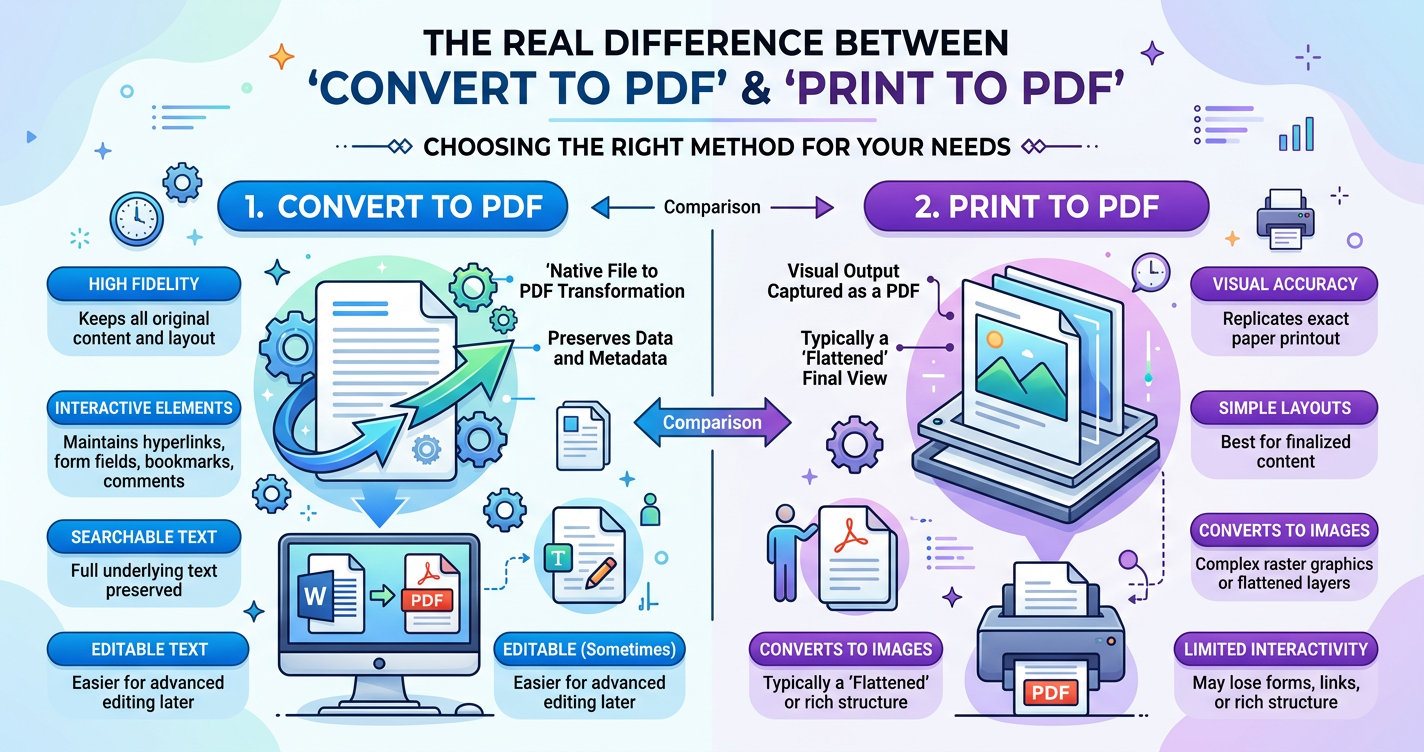
Most users treat the Print button as a universal export tool. It is a logical assumption: if you can see it on your screen, and you want it in a document, you select Print to PDF. In modern browsers like Chrome (Version 120+) or Safari, this creates a file that looks like a document. But there is a fundamental technical disconnect between a file that has been printed to a virtual printer and a file that has been converted through a direct data transformation.
When you use the Print to PDF function, you are not actually converting a file. You are sending a set of instructions to a virtual printer driver. This driver interprets the visual data as if it were being physically laid onto a 8.5 by 11 inch piece of paper. A dedicated converter, on the other hand, takes the raw data of your source file—whether it is a JPG, a PNG, or a Word doc—and wraps it in the PDF container specification without passing it through a print pipeline. The results are rarely identical, and for professional or high-fidelity work, the differences are significant.
To understand why your PDF looks slightly off when created via the browser, you have to look at the print engine. When you trigger Print to PDF, the browser or OS operating system applies a series of print-specific filters.
First, there is the margin injection. Most print drivers default to a standard margin, usually 0.25 to 0.5 inches. Even if you select No Margins in your print settings, the software often applies a non-printable area logic that can slightly shrink your content to ensure nothing is cut off. If you are trying to preserve the exact pixel dimensions of an image, this scaling ruins the 1:1 ratio.
Second, there is the rasterization factor. Printing is a visual rendering process. If you have a high-resolution image, the print driver may downsample it to 300 DPI or even 720 DPI depending on the system settings. This is fine for a physical handout, but if you need that PDF to retain the original metadata or the crispness of a high-bitrate photograph, the print driver acts as a bottleneck.
Third, and perhaps most importantly, you lose interactivity. If you print a webpage or a document that contains internal links, the Print to PDF function usually flattens those links. They become blue underlined text that does nothing when clicked. A true conversion process keeps the underlying URI data intact because it is rewriting the file structure rather than taking a high-quality screenshot of it.
Why Dedicated Converters Preserve Integrity
A purpose-built image-to-PDF tool operates on the file level rather than the visual level. When you upload a JPG to a converter, the software reads the header data of the image. It notes the exact width and height in pixels. It then generates a PDF page that matches those exact dimensions. There is no white border unless you specifically ask for one, and there is no arbitrary scaling to fit a standard paper size.
This distinction is vital for anyone who has struggled with an image-to-pdf-order-orientation-guide (/blog/image-to-pdf-order-orientation-guide) when trying to compile a portfolio or a set of technical drawings. In a dedicated tool, the orientation is determined by the image data itself. In a print dialog, the software might try to force a landscape image into a portrait layout, leading to massive white gaps at the top and bottom or, worse, a cropped image that loses data on the sides.
Furthermore, a dedicated converter maintains the color space of the original file. Print drivers often convert everything to CMYK (Cyan, Magenta, Yellow, Black) because that is what physical ink requires. If you are sharing a digital-only PDF that was meant for an RGB (Red, Green, Blue) screen, the print-to-PDF path can make the colors look dull or shifted. Conversion tools stay within the digital-first RGB space until you tell them otherwise.
The Metadata and Accessibility Gap
Beyond the visual, there is the data layer. A PDF is more than just a picture of a document; it is a database of contents. When you convert a file, the resulting PDF can carry over metadata from the source. This includes creation dates, author information, and keywords.
Print to PDF usually strips this away, replacing it with the metadata of the printing event. The PDF will say it was created by Chrome or Microsoft Print to PDF rather than the original camera or software that produced the image. For archival purposes, this loss of provenance can be a dealbreaker.
Accessibility is another casualty of the print pipeline. Screen readers rely on the underlying structure of a document to help visually impaired users navigate content. While some modern print drivers are getting better at tagging PDFs for accessibility, a direct conversion is far more likely to retain the structural tags needed for compliance with standards like PDF/UA. When you print, you are essentially creating a flat image of your text; when you convert, you are moving the text elements from one container to another.
When to Use Each Method
This is not to say that Print to PDF is useless. It is an excellent tool for quick-and-dirty captures of dynamic content that lacks a download button. If you are browsing a banking portal or a receipt page that only offers a Print option, using the virtual PDF printer is the fastest way to get a local copy. It is also useful when you specifically want the document to look like a physical printout, complete with page numbers, headers, and footers that the browser automatically generates.
However, you should avoid the print pipeline if:
You need the document to be a specific size (e.g., A3, B5, or custom pixel dimensions).
You are handling high-resolution photography where every pixel matters.
You want to keep the file size as small as possible (print drivers often produce bloated files because they cannot optimize the data as efficiently as a converter).
You need to combine multiple images into a single, cohesive document without varying margins.
You need to maintain clickable links or internal document navigation.
Step by Step: The Clean Conversion Workflow
If you want a professional result when turning images into a document, skip the browser's print dialog and follow this workflow using a browser-based converter. This method ensures that your images are not resized or bordered by the OS print manager.
Gather your source files. If you have several JPGs that need to be in one document, ensure they are named in the order you want them to appear.
Visit the JPG to PDF tool. Unlike a print driver, this tool is designed to recognize the boundaries of each image file individually.
Upload your files. The tool will read the resolution of each image. If one image is 1200x1800 and the next is 800x800, a high-quality converter can handle these disparate sizes without forcing them both onto a standard A4 canvas.
Adjust the settings. Most converters allow you to toggle between Original Size and Fit to Page. Choosing Original Size bypasses the scaling issues inherent in the Print to PDF pipeline.
Generate and download. The resulting file is a true PDF, optimized for the screen and containing the original image data without the unnecessary overhead of print instructions.
By choosing a dedicated tool over the generic print command, you are choosing data integrity over a convenient shortcut. It is the difference between making a photocopy of a photograph and copying the digital file of the photograph itself. One is a representation; the other is a reproduction. For anything that requires precision, always choose the path of conversion.
Try our related free tools
Put this guide into practice with our free image compressor, PDF merger, and AI grammar checker — all run in your browser with no signup.
Related articles
How to Convert Images to PDF Without Losing Quality
Stop struggling with messy folders of JPGs. Learn the fastest ways to convert images to PDF on Windows, Mac, and mobile while keeping your files crisp and professional.
How to Use a File Converter PDF to PNG Without Losing Quality
Converting a PDF to a PNG doesn't have to be a tech headache. Learn the fastest ways to extract high-quality images from your documents using built-in tools and online converters.
How to Convert JPG to PDF Without Losing Quality: A Complete Guide
Learn how to transform your images into professional PDF documents without losing resolution using free online tools, Windows, and Mac built-in features.
How to Convert a PNG File to a PDF
Learn how to turn your PNG images into clean, professional PDF documents using built-in system tools and expert optimization tricks.
About the author
Instant Access Tools Team
Reviewed by the Instant Access Tools Editorial Team
Our editorial team builds and reviews free browser-based tools for PDFs, images, calculators and AI utilities. Every guide is written by writers who use the tools themselves and reviewed for accuracy before publication.