How to Compress a PDF File — A Complete Guide (2026)
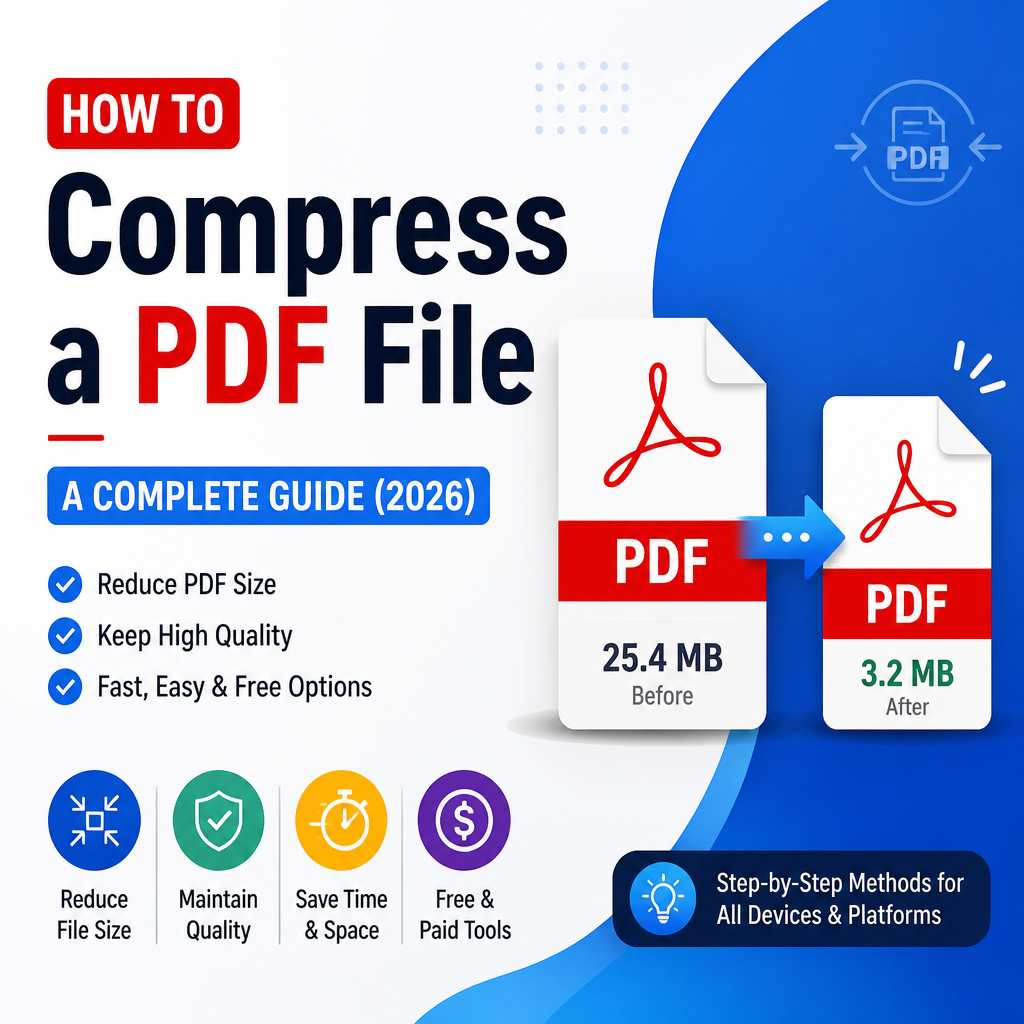
How to Compress a PDF File — A Complete Guide (2025)
PDF is the universal document format, but it has one infamous weakness: file size. A short brochure can easily reach 20–40 MB, and email providers usually reject attachments larger than 25 MB. This guide explains why PDFs get so big and how to shrink them — fast, for free, and without losing readable quality.
Why PDF files get large
A PDF is a container. Inside it can hold:
- High-resolution embedded images
- Fully embedded fonts (sometimes multiple weights)
- Vector graphics, forms and interactive elements
- Metadata, comments and revision history
Most "huge" PDFs are huge for one reason: uncompressed or oversized images. A scanned 30-page document with each page stored as a 300dpi JPG can easily weigh 50 MB, even though the visible content is mostly text.
Optimisation vs compression — what's the difference?
People use these terms interchangeably, but they mean slightly different things:
- Optimisation restructures the PDF so duplicate objects are merged, unused resources are stripped, and the file loads faster. Often shaves 10–20% with zero quality loss.
- Compression actively reduces the size of embedded assets — typically by downsampling and re-encoding images at lower quality.
Most online compressors do both at once.
When to compress vs convert
Compress when the file needs to remain a PDF — for example, signed contracts, invoices, presentations, or anything heading to email or a document portal.
Convert when the PDF is essentially a wrapper around a single resource. A 10-page text-only PDF often becomes a much smaller .docx or .txt. A PDF that is really just one chart could be exported as a PNG and dropped into your slide deck.
How to compress a PDF with our free tool
Open the PDF tools page, pick the compressor, and follow these steps:
- Drop your PDF onto the upload area. Files up to several hundred MB are supported.
- Pick a compression level — Recommended is the safe middle ground that balances file size and image clarity.
- Click Compress and wait. Most documents finish in a few seconds.
- Compare before/after sizes in the result panel.
- Download the smaller PDF.
Sensitive document? Look for tools that process locally in the browser, or delete uploads automatically after a short period.
Best practices
- Right-size scans. When scanning a document, 200dpi black-and-white is plenty for text. 600dpi colour is overkill unless you're archiving photographs.
- Flatten before compressing. If your PDF has many form fields, comments or layers, flattening them often unlocks better compression.
- Crop empty space. A scanned A3 page with content only in the top corner stores the empty area too. Cropping can dramatically reduce size.
- Re-compress only when needed. Each pass loses a little quality. Keep your original master file untouched and re-export when possible.
What to expect
Typical results from our compressor on common documents:
- Text-heavy reports: 40–60% reduction
- Mixed-content brochures: 50–70% reduction
- Image-heavy scans: 60–85% reduction
If your PDF barely shrinks, it's usually already optimised — there's only so much you can compress text. The opposite is also true: a huge document with embedded photos can sometimes go from 50 MB to under 5 MB.
Try it now
Compressing a PDF should take less than a minute. Try the free PDF compressor — no signup, no watermarks, no email required.
Try our related free tools
Put this guide into practice with our free image compressor, PDF merger, and AI grammar checker — all run in your browser with no signup.
Related articles
How to Compress PDF Without Losing Quality (Free Guide 2026)
Struggling with giant PDF files that won't attach to emails? Learn the best ways to shrink your documents in 2026 without making them look like a blurry mess.
Why Your PDF Got Bigger After You 'Compressed' It (And How to Actually Fix That)
It is a common frustration. You have a 5MB PDF that is just slightly too large for an email attachment limit or a government portal upload. You head to a compression tool, upload the file, and wait for the magic to happen. Instead of the expected drop to 2MB, the tool hands back
How to Compress Images Without Losing Quality (PNG, JPG & WebP Guide)
A practical guide to compressing PNG, JPG and WebP images for the web without visibly losing quality.
How to Convert Images to PDF Without Losing Quality
Stop struggling with messy folders of JPGs. Learn the fastest ways to convert images to PDF on Windows, Mac, and mobile while keeping your files crisp and professional.
About the author
Instant Access Tools Team
Reviewed by the Instant Access Tools Editorial Team
Our editorial team builds and reviews free browser-based tools for PDFs, images, calculators and AI utilities. Every guide is written by writers who use the tools themselves and reviewed for accuracy before publication.