How to Compress Images Without Losing Quality (PNG, JPG & WebP Guide)
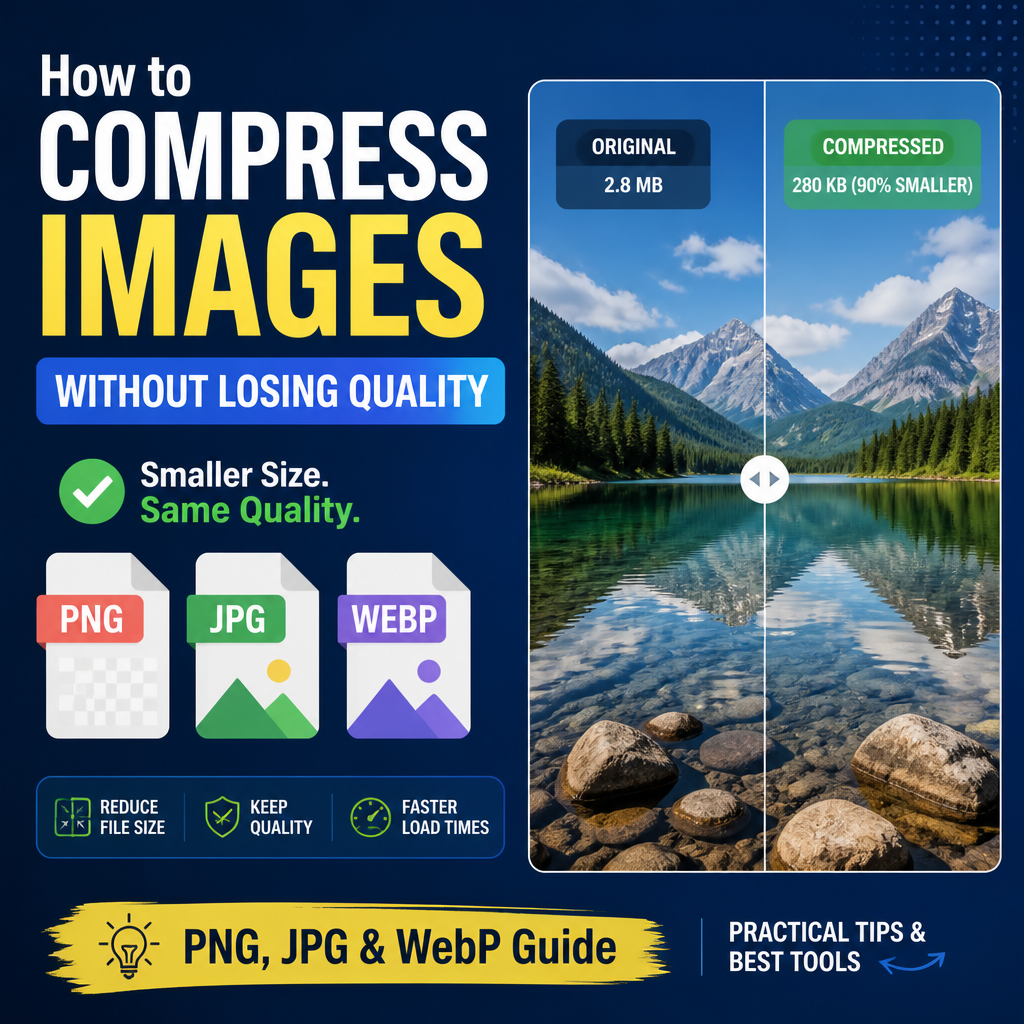
How to Compress Images Without Losing Quality
Images are the heaviest assets on most modern websites. A single uncompressed hero photo can easily weigh several megabytes, and large images are one of the top reasons pages feel slow on mobile networks. The good news: with the right approach, you can dramatically shrink image file sizes — often by 60–80% — without any visible loss in quality.
Why image compression matters for the web
Page speed directly affects bounce rate, conversions and SEO rankings. Google's Core Web Vitals include Largest Contentful Paint (LCP), which is usually the hero image. Cutting image weight is the fastest way to improve LCP and overall load time on mobile.
Smaller images also mean lower bandwidth bills, faster image previews in chat apps, and faster sharing on slower networks. For anything you publish online, compression isn't optional — it's table stakes.
Lossy vs lossless: what's the difference?
- Lossless compression rebuilds the original image pixel-for-pixel after decoding. Formats like PNG and the lossless mode of WebP fall here. File size savings are real but modest — typically 10–40%.
- Lossy compression removes detail your eye is least likely to notice. JPG and the default mode of WebP work this way. Savings can be huge (often 70–90%) and, at sensible quality settings, the result is visually indistinguishable from the original.
A good rule of thumb: use lossy for photos and screenshots that don't need pixel perfection, and lossless for diagrams, logos and UI exports that must stay crisp.
Why WebP is usually the best choice
WebP, developed by Google, supports both lossy and lossless compression and outperforms JPG and PNG at the same quality level — often by 25–35%. Every major browser supports it. Unless you specifically need PNG transparency on very old software, WebP is the modern default.
If you're still shipping JPG for photos and PNG for graphics, switching to WebP is usually the single biggest win you can make.
How to compress an image with our free tool
Open the Image Compressor and follow these steps:
- Drag and drop your image (or click to browse). PNG, JPG, GIF, and WebP are all supported.
- Pick a quality setting. 75–85 is a great default for photos.
- Optionally choose an output format — try WebP for the smallest file size.
- Click Compress and wait a moment.
- Compare the before/after preview and download the optimised file.
Everything happens locally in your browser. Your image never gets uploaded to a server.
Tips for keeping quality high
- Resize first, compress second. A 4000px photo displayed at 800px wastes bytes. Resize down to the dimensions you actually use before compressing.
- Don't compress twice. Lossy compression is destructive. Keep an original master file and re-export from it instead of compressing the same JPG five times.
- Match format to content. Photos → JPG or WebP (lossy). Logos, screenshots with text, UI exports → PNG or WebP (lossless).
- Use responsive images. Serve a smaller image to mobile users with
<picture>orsrcset. The best compression is sending less data in the first place.
Wrapping up
Image compression is one of the highest-leverage optimisations you can make. Spend ten minutes running your hero and gallery images through a compressor, switch to WebP where you can, and your site will feel noticeably faster — without anyone noticing the difference in image quality.
Ready to try it? Run your first image through the Image Compressor now — it's free, instant, and works right in your browser.
Try our related free tools
Put this guide into practice with our free image compressor, PDF merger, and AI grammar checker — all run in your browser with no signup.
Related articles
WebP vs PNG vs JPG in 2026: Which Format Actually Saves the Most Space
The debate over image formats has long been dominated by a simple binary: use JPG for photos and PNG for graphics. However, by 2026, the widespread adoption of WebP and the emerging AVIF standard have complicated the decision-making process. Selecting the wrong format does not ju
Converting Portable Network Graphics to JPG
Learn how to convert Portable Network Graphics (PNG) to JPG without losing quality. We compare high-compression tools and built-in methods for any device.
How to Compress a PDF File — A Complete Guide (2026)
Why PDFs balloon in size, when to compress vs convert, and a step-by-step walkthrough using our free PDF compressor.
Why Image Compression Tools Give Different Results for the Same File
You upload a portrait to one image compressor and get a 400 KB result. You upload the exact same file to a different tool, and it pushes back a 250 KB file. On the surface, the smaller file seems like the winner. However, if you zoom in on the high-contrast edges of a subject''s h
About the author
Instant Access Tools Team
Reviewed by the Instant Access Tools Editorial Team
Our editorial team builds and reviews free browser-based tools for PDFs, images, calculators and AI utilities. Every guide is written by writers who use the tools themselves and reviewed for accuracy before publication.