How to Use a Free Online AI Image Enhancer to Save Your Blurry Photos
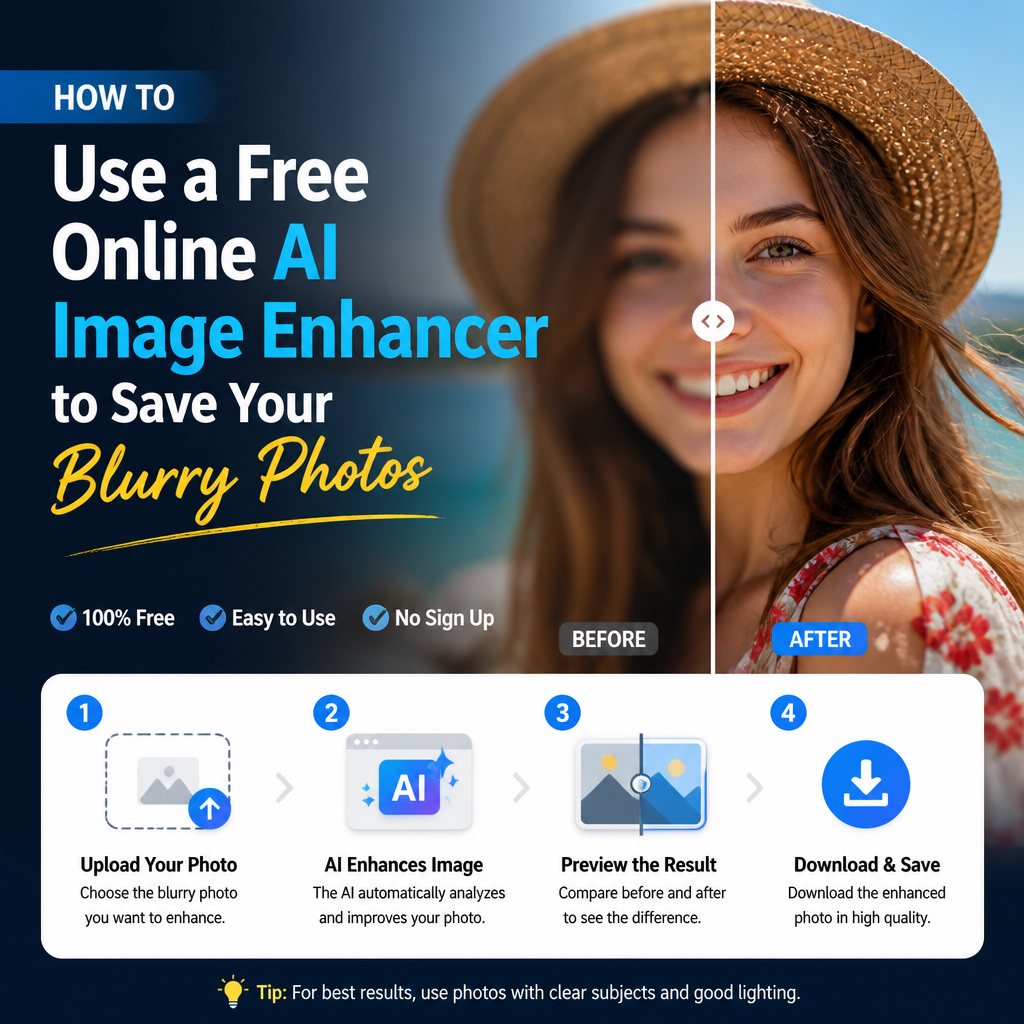
You’ve finally captured the perfect sunset or a candid family laugh, only to realize the shot is grainier than a bowl of oatmeal. Maybe it's an old 2010-era phone photo that looks tiny on a modern screen.
You don't need a degree in graphic design or a $50-a-month subscription to fix this. A free online AI image enhancer can breathe life back into those pixels in seconds. Most people think they're stuck with low-quality files, but modern machine learning has changed the game for everyone.
How AI actually fixes your photos
To use a free online AI image enhancer effectively, you just upload your file, select your upscale factor (like 2x or 4x), and let the neural network fill in the blanks. Unlike traditional resizing that just stretches pixels and makes things look 'soft,' AI 'guesses' what the missing details should look like based on millions of other high-res images it has studied.
I’ve found that these tools work best when you have at least some basic shapes visible. If your photo looks like a Minecraft block, AI might struggle to recreate reality. However, for most social media snaps or old scans, the results feel like magic. Here is what usually happens behind the scenes:
Noise Reduction: The AI identifies digital grain and smooths it out without losing texture.
Edge Sharpening: It finds the borders of objects and tightens them up for a crisp look.
Color Correction: Some enhancers automatically balance the 'temperature' of your shot.
Now here's where it gets interesting...
Choosing the right tool for the job
Not all enhancers are built the same way. Some focus specifically on faces, while others are better at landscapes or anime-style art. If you're trying to fix a portrait, look for a tool that mentions 'face restoration' specifically. This ensures the eyes and skin texture don't end up looking like plastic or a weird wax figure. My personal take? I always prefer tools that give me a 'before and after' slider because it lets me see if the AI went too far.
Here's the thing: you should always check the output resolution. Many free services will enhance the photo but then cap the download size unless you pay. Look for tools that offer a transparent 'what you see is what you get' model. You want a tool that respects your original aspect ratio so your cat doesn't end up looking five feet long after the process.
But wait—
Preparing your image for the best results
While AI is powerful, it isn't a miracle worker. You’ll get much better results if you do a tiny bit of prep work before hitting that upload button. Try to use the original file rather than a screenshot of a photo. Screenshots compress the data even further, giving the AI less 'information' to work with.
If the photo is very dark, use a basic brightness slider on your phone before uploading. Even a small boost in visibility helps the algorithm identify where objects start and end. Honestly, people often blame the AI when the real culprit was a low-quality source file that was already compressed three times by WhatsApp. Keep your source as clean as possible.
Now, if you're ready to see what your grainy photos can actually look like in high definition, why not try it out yourself? You can use the AI Image Enhancer to instantly sharpen and upscale your images for free.
Try our related free tools
Put this guide into practice with our free image compressor, PDF merger, and AI grammar checker — all run in your browser with no signup.
Related articles
5 Ways AI is Changing Image Editing
From one-click background removal to smart upscaling, here are five ways AI-powered image editing tools are transforming everyday photo workflows.
How to Compress PDF Without Losing Quality (Free Guide 2026)
Struggling with giant PDF files that won't attach to emails? Learn the best ways to shrink your documents in 2026 without making them look like a blurry mess.
How to Compress Images Without Losing Quality (PNG, JPG & WebP Guide)
A practical guide to compressing PNG, JPG and WebP images for the web without visibly losing quality.
How to Convert Images to PDF Without Losing Quality
Stop struggling with messy folders of JPGs. Learn the fastest ways to convert images to PDF on Windows, Mac, and mobile while keeping your files crisp and professional.
About the author
Instant Access Tools Team
Reviewed by the Instant Access Tools Editorial Team
Our editorial team builds and reviews free browser-based tools for PDFs, images, calculators and AI utilities. Every guide is written by writers who use the tools themselves and reviewed for accuracy before publication.